
Liquify image online
Push, bulge, pinch or twirl your photo, then save a PNG.
1. Choose an image
Up to 25 MB and 4000 × 4000 px. Images above a 2000 px long edge are reduced. Your image stays on your device.
2. Shape with a brush
Drag to move pixels under the brush.
Undo keeps up to 30 strokes; very large edits may keep fewer. Reset restores the whole image.
Live preview
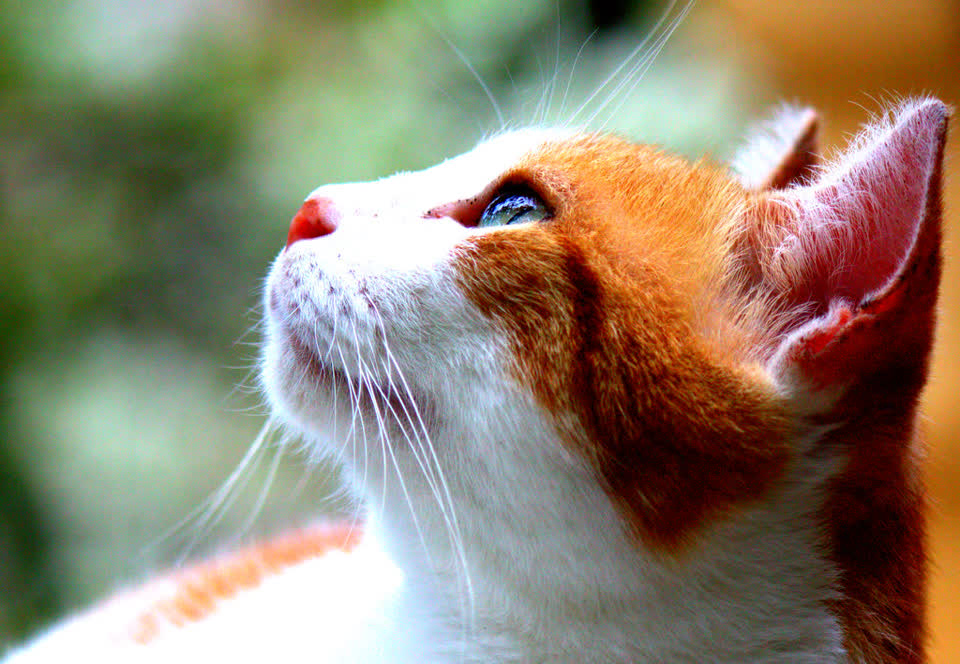
Loading the example. You can also upload your own image.
Loading editable example…
Preview uses a smaller image for smooth brushing. PNG export uses the displayed export size and preserves transparency. Scroll outside the image on touchscreens.
How to liquify a photo
Nudge a shape into place or give your photo a playful twist. Brush directly on the image, undo a stroke, then save your result as a PNG.
- Choose a PNG, JPEG or WebP, or open the example to experiment.
- Pick a brush and adjust its size and strength. Drag across the preview; Bloat, Pinch, Twirl and Restore also work while you hold in place.
- Use Undo for the last stroke or Reset image to start again. Download the finished still image as PNG.
Warp and distort an image online
To warp an image online or distort part of it, choose Push and drag in the direction you want pixels to move. For a gentle shape adjustment, use a broad brush and low strength, then make short strokes. For a playful warped image, increase the strength or hold Twirl over a detail. Restore gradually brings a brushed area back toward the original.
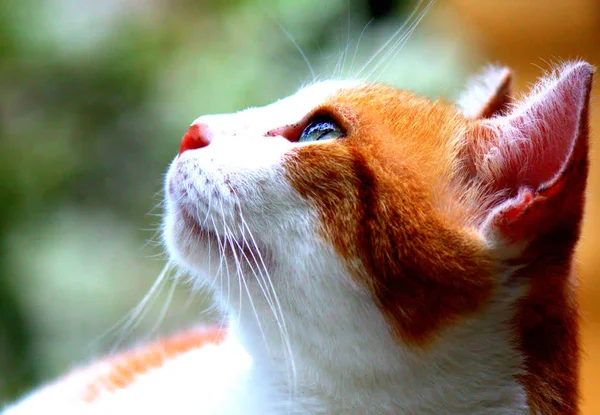
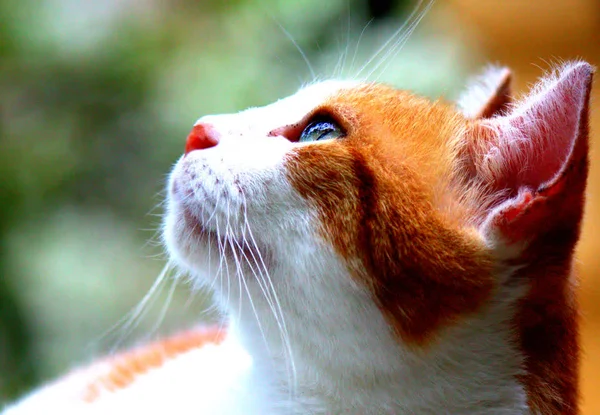
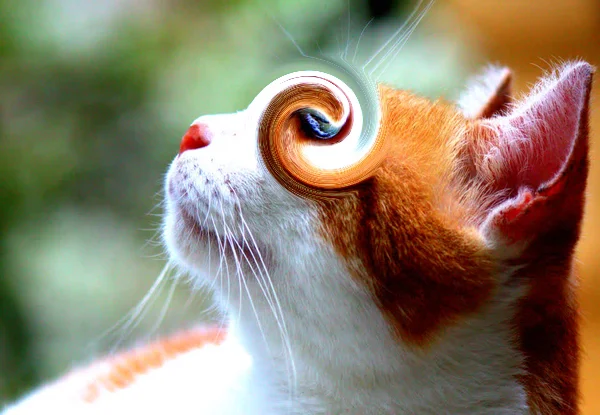
Bulge an image with Bloat
Bloat pushes pixels outward from the brush center, so the area under it swells and looks magnified. Hold it over a nose, an eye or a logo to bulge that detail; a large brush over a centered subject gives a fisheye-style bulge. This is a local brush effect, not a lens-accurate fisheye projection of the whole frame. Pinch does the opposite and shrinks the area inward.
Does liquify change the image size?
Liquify moves pixels inside the image without changing the working canvas dimensions. To change its aspect ratio using seam carving, try Content Aware Scale. For animated squish and stretch, use Melt Video; this liquify tool exports still images only.
What size and format can I download?
The tool accepts PNG, JPEG and WebP files up to 25 MB and 4000 × 4000 pixels. Accepted images above a 2000-pixel long edge are reduced before editing. Download uses the export dimensions shown in the tool, preserves transparency and adds no watermark. Large or repeated distortions can stretch detail; use Undo or Restore to correct them.
A free Photoshop Liquify alternative
Photoshop's Liquify filter includes Forward Warp, Bloat, Pucker, Twirl Clockwise and Reconstruct tools. Here the matching brushes are Push, Bloat, Pinch, Twirl and Restore, each with size and strength controls and Undo. There is no freeze mask, Face-Aware Liquify or saved mesh, and the result is a flattened PNG rather than a layered file.
Is this photo liquify tool private?
Your image is processed on your device and is not uploaded. You can reshape a photo and download the result without installing an app or creating an account.
Use PhotoCraft liquify brushes in your browser
This tool adapts the liquify algorithm from the open-source PhotoCraft project. Use Push to move pixels, Bloat to expand a detail, Pinch to contract it, and Twirl to create a swirl effect. Restore moves a brushed area back toward the original.
Content Aware Scale is an independent site offering selected PhotoCraft-based tools, not the full PhotoCraft editor. Explore more PhotoCraft-based image tools or read the open-source notices.