
Stretch image online
Make a picture wider or taller, or squish it, then download PNG or JPEG.
Your image
PNG, JPEG or WebP up to 25 MB and 4000 × 4000 px. Your image stays in this browser.
Your preview · same scale
Stretching…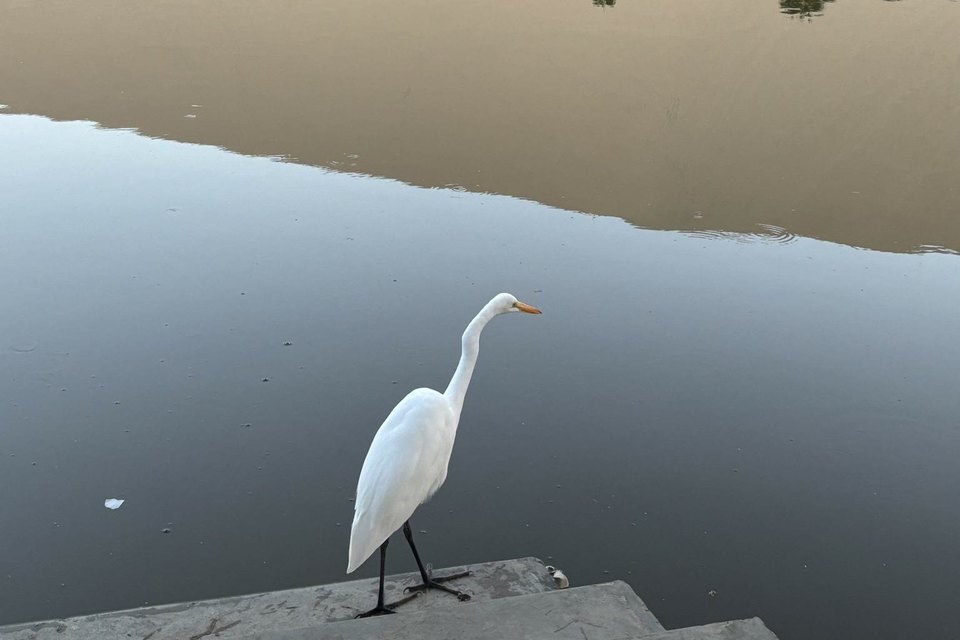
Stretch or squish
Two ways to stretch a photo
Stretch an image online: make it wider or taller or squish it by pixels or percent. Plain stretch for memes, or content-aware seam carving. PNG or JPEG.
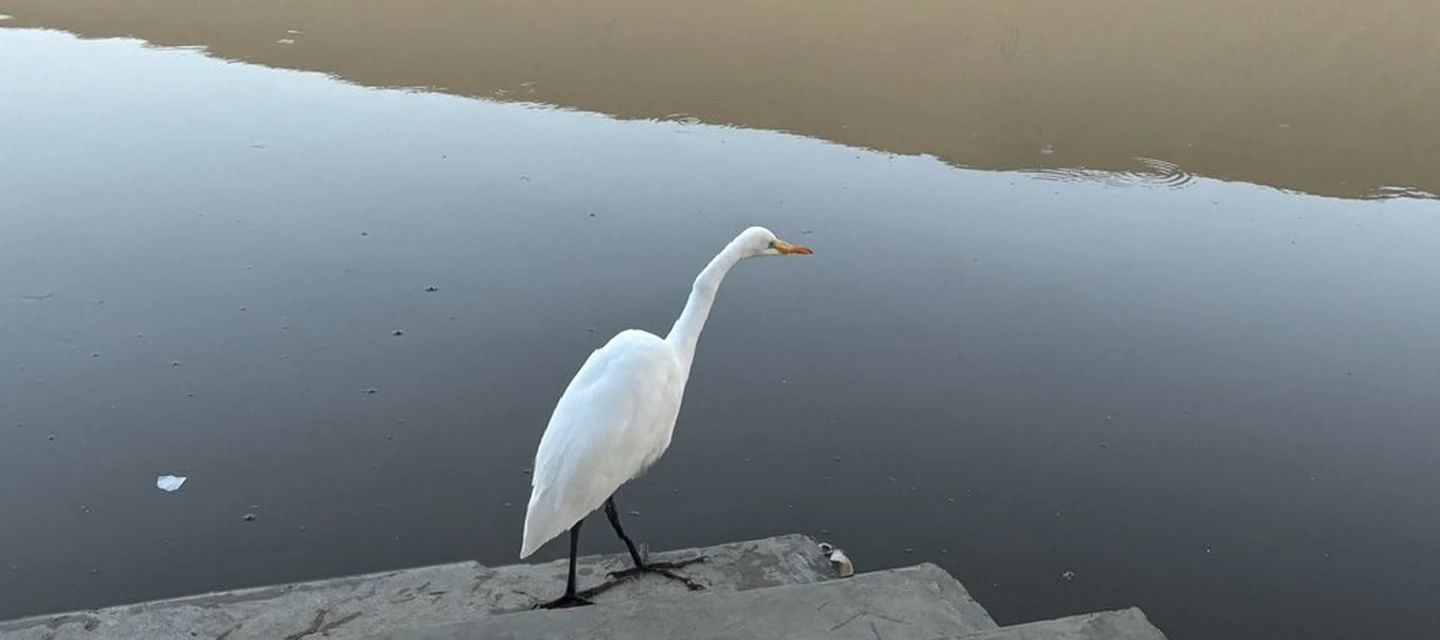
Plain stretch scales the whole picture, so everything widens or flattens by the same amount: right for a stretched meme, wrong for a photo you want to look natural. Content-aware scales the picture evenly to cover the new size, then uses seam carving to remove the rows or columns with the least detail until it fits. How much that spares the subject depends on the photo, so compare both.
How to use Stretch Image
- 01
Upload a photo, or start with the example.
- 02
Set the new width and height in pixels or as a percentage, or pick Wider, Taller or a Squish preset. Choose Plain stretch for the classic stretched look, or Content-aware to remove low-detail rows or columns first.
- 03
Compare the result with the original at the same scale, choose PNG or JPEG and download.
Plain stretch or content-aware?
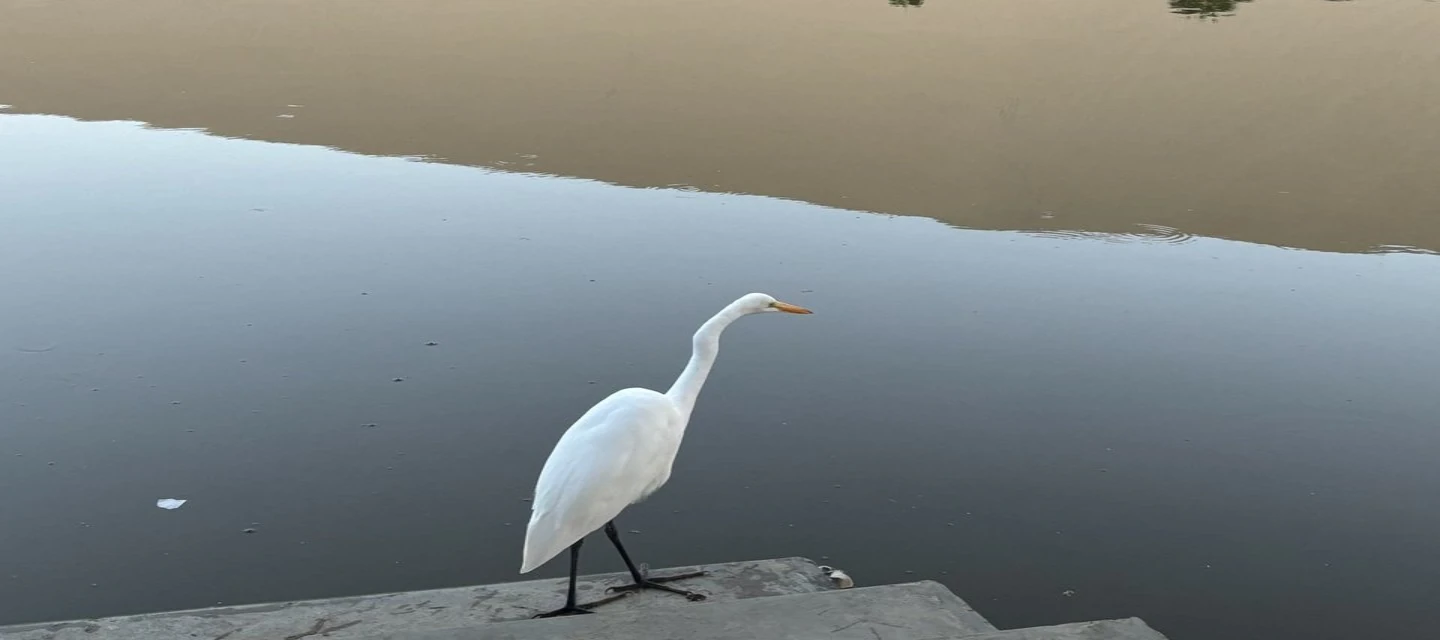
Use Plain stretch when the distortion is the point, such as a stretched or squished meme, or when the picture has nothing whose shape matters, like a texture, a gradient or a pattern. It is instant, keeps every part of the picture and treats every pixel the same.
Try Content-aware when the result should look natural: a photo made wider for a banner, or squished to fit a narrower slot. It uses seam carving: the picture is scaled evenly to cover the new size, then paths of pixels with the least detail, the seams, are removed until it fits. Where the photo has plain areas, such as sky, water or a wall, much of the change can go there instead of into the subject. Seam carving judges detail, not meaning, so a smooth subject like white feathers or fur can still be squeezed. It takes a few seconds; compare it with Plain stretch and keep the one that looks better.
Make a stretched meme
The stretch meme is simple: take a face or a pet and make it far too wide or far too tall. Keep Plain stretch, press Wider, or drag the width slider toward 300% for an extreme stretch. Squish flat does the opposite. The preview draws the original and the result at the same scale, so you see how far it went. Add a caption with Add text, or turn the photo into a melting video with the content aware scale meme maker.
Squish an image
Squishing makes one side shorter. To squish an image flat, lower the height; to squish it thin, lower the width. With Plain stretch everything gets squashed. With Content-aware, seam carving removes low-detail rows or columns first: the classic content-aware scale effect, which can keep a subject closer to its proportions while the picture gets shorter or narrower.
Make an image wider
A photo often needs a wider shape than it was taken in: a 3:2 photo for a 2:1 header, or a portrait for a landscape slot. Set the new width, or a width percentage. Plain stretch widens everything in the picture. Content-aware scales the photo up evenly to the new width, then removes low-detail rows until the height fits, so you lose some plain area above and below the subject instead of widening all of it. Past about a third wider the picture is cropped a little in height first. When the subject must not change shape at all, adding a background or cropping is the safer choice: the content-aware resize tool offers both, with platform sizes.
Stretch image FAQ
- How do I stretch an image without distorting it?
- A new shape always changes something. Content-aware changes the parts with the least detail: the picture is scaled evenly to cover the new size, then seam carving removes the rows or columns that matter least until it fits. It helps most on photos with plain areas such as sky or water, and past about a 25% change in shape it crops a little first. A smooth subject, like white fur, can still be squeezed. If nothing in the picture may change shape, add a background or crop instead; the content-aware resize tool does both.
- How do I make a stretched meme?
- Keep Plain stretch, then press Wider or drag the width slider well past 100%. For the squashed look, press Squish flat or lower the height. Download the result, or send it to Add text to put a caption on it.
- Can I stretch an image by a percentage?
- Yes. Width and height each have a percentage field and a slider from 10% to 300%. The pixel fields next to them update as you go, and you can type exact pixels instead, from 16 to 4000 px per side.
- What is the difference between stretching and resizing?
- Resizing usually keeps the proportions: width and height change by the same amount. Stretching changes them by different amounts, so the picture gets a new shape. Plain stretch distorts the content to fill that shape; content-aware stretching removes low-detail rows or columns first.
- Does stretching an image lower the quality?
- Making a picture larger cannot add detail, so a big stretch looks softer, whichever mode you use. Squishing throws detail away. PNG saves the result without further loss; JPEG is smaller but compressed.
- Is my image uploaded?
- No. Stretching, content-aware resizing and the download all happen in your browser. Your image is not uploaded, and you do not need an account.
When this tool works best
Plain stretch distorts everything by the same amount, on purpose. Content-aware removes the rows or columns with the least detail first, so it can only help where the picture has plain areas such as sky, water or a wall. A smooth subject, like white feathers or fur, has little detail too and can still be squeezed, so compare it with Plain stretch. Past about a 25% change in shape it crops a little first. Making a picture larger cannot add detail, so a big stretch looks softer in either mode. Static images only.
Your downloaded file
A PNG or JPEG at exactly the width and height you set, from 16 to 4000 px per side. PNG keeps transparency; JPEG fills transparent areas with white. Content-aware results are worked out at up to 1.2 megapixels and scaled evenly to anything larger.
Your image stays on your device
Processing runs in this browser. No image upload, account or remote AI service is required. Original images are kept separate from edits; failed processing keeps the original available. Downloads use your current settings; previews update automatically where supported. Open-source notices