
Twitch emote resizer: every emote and badge size at once
Make your image square, then download every Twitch emote and badge size as PNG.
Your image
PNG with a transparent background works best. PNG, JPEG or WebP up to 25 MB and 4000 × 4000 px. Your image stays in this browser.
Your preview
Making the square…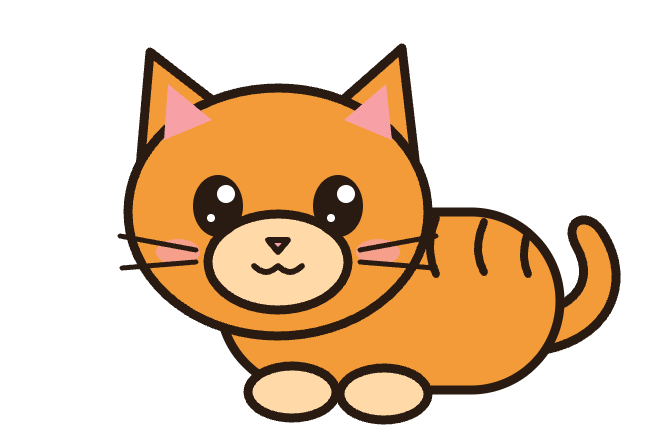
Twitch sizes · actual pixels
Make it square
Squeeze, crop or pad: three ways to make it square
Resize an image to Twitch emote sizes (112, 56 and 28 px) and sub badge sizes (72, 36 and 18 px). Squeeze, crop or pad it square and get transparent PNGs in one ZIP.
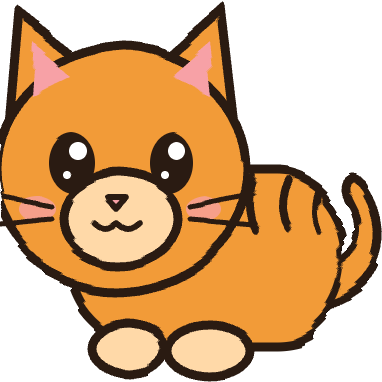
Squeeze uses content-aware resizing (seam carving): it removes the columns or rows that matter least, such as empty space and plain fill, so the face, ears and tail stay in the picture. Crop keeps a square part and cuts off the rest. Pad keeps everything and adds transparent space, which makes the art smaller in chat.
How to use Twitch Emote Resizer
- 01
Upload your emote art, ideally a PNG with a transparent background, or start with the example.
- 02
If the picture is not square, choose Squeeze, Crop or Pad. Squeeze removes empty and plain areas, so ears and outlines are not cut off.
- 03
Check the emotes and badges at actual size and in the chat preview, then download the ZIP and upload the files in your Twitch dashboard.
Twitch emote and badge sizes
| Image | Sizes | Format | Max file size |
|---|---|---|---|
| Emote, manual upload | 112 × 112, 56 × 56 and 28 × 28 px | Square PNG, transparent background | 1 MB |
| Emote, auto-resize | One square image, 112 to 4096 px | Square PNG, transparent background | 1 MB |
| Subscriber badge | 72 × 72, 36 × 36 and 18 × 18 px | PNG, transparent background | 25 KB each |
| Animated emote (not in this tool yet) | Same as emotes | Square GIF, up to 60 frames | 1 MB, or 512 KB each when uploaded manually |
From Twitch’s emote formatting requirements and subscriber badge guide, checked October 16, 2026. File sizes here are checked against 1,000,000 and 25,000 bytes, the stricter reading of Twitch’s limits.
Why squeeze instead of crop?
Emote art is rarely drawn on a square canvas. Cropping a wide picture to a square cuts off ears, hands or a tail, and padding it keeps everything but leaves the art small, which is a real problem at 28 pixels. Squeeze is the middle way: it uses seam carving to find paths through the least important pixels, such as empty transparent space and plain areas of fill, and removes them until the picture is square. Detailed parts like eyes and outlines are kept, so the character stays recognizable.
Squeezing has limits. When the subject fills the whole frame, or the picture is much wider than it is tall, outlines and faces can bend. The tool warns you when more than a quarter of the width or height has to go. Compare Squeeze with Crop and Pad and pick the one that looks best at 28 pixels.
Make emotes that still read at 28 pixels
In chat, an emote takes up just 28 × 28 pixels of space (sharper screens show the larger files at that same size), so design for it. Use bold outlines, a clear silhouette and one strong expression, and leave out fine texture and small text. Keep “Trim empty transparent edges” on so the art fills the square instead of floating in empty space. Check the chat preview on both the dark and the light background: a dark outline that disappears on dark mode needs a lighter edge or a thin light stroke.
Running a Discord server too? The Discord emoji resizer makes a 128 px emoji and a 320 px sticker from the same art.
Twitch emote resizer FAQ
- What size should a Twitch emote be?
- Twitch emotes are square PNGs with a transparent background, no larger than 1 MB. For a manual upload you need three sizes: 112 × 112, 56 × 56 and 28 × 28 pixels. With auto-resize, you upload one square PNG between 112 × 112 and 4096 × 4096 pixels and Twitch makes the smaller sizes.
- What size are Twitch sub badges?
- Subscriber badges are PNGs with a transparent background in three sizes: 72 × 72, 36 × 36 and 18 × 18 pixels. Each file must be 25 KB or smaller. Badges have no auto-resize, so you upload all three.
- How do I resize an emote without cropping it?
- Choose Squeeze. It makes the picture square with content-aware resizing, removing empty space and plain fill instead of cutting off an edge. If the subject fills the whole frame and starts to bend, choose Pad: it keeps every pixel and adds transparent space around the art.
- Should I use auto-resize or upload all three emote sizes?
- Auto-resize is quicker: upload the single square PNG from this tool and Twitch does the rest. Uploading the three sizes yourself lets you check exactly what chat shows at 28 pixels before you publish. The ZIP from this tool works for the manual upload, and its square PNG works for auto-resize.
- Can I resize animated GIF emotes here?
- Not yet. This tool makes static PNG emotes and badges. Twitch asks for animated emotes as square GIFs of up to 60 frames, at most 1 MB in auto-resize mode or 512 KB per file in manual mode.
- Is my image uploaded to a server?
- No. Resizing, squeezing and the ZIP all happen in your browser. Your image is not uploaded, and you do not need an account.
When this tool works best
Static emotes and badges only; animated GIF emotes are not supported yet. Squeeze works best when the picture has empty or plain space to remove. A subject that fills the whole frame can bend, so compare it with Crop and Pad. Fine lines and small text get lost at 28 px, so bold shapes read best.
Your downloaded file
A ZIP with six transparent PNGs: emotes at 112, 56 and 28 px and badges at 72, 36 and 18 px, each checked against Twitch’s 1 MB emote and 25 KB badge limits. You can also save one square PNG of up to 512 px for Twitch’s auto-resize upload.
Your image stays on your device
Processing runs in this browser. No image upload, account or remote AI service is required. Original images are kept separate from edits; failed processing keeps the original available. Downloads use your current settings; previews update automatically where supported. Open-source notices