
Posterize an image with a live preview
Reduce a photo to flat bands of color, then save a PNG.
Example image · ready to edit
PNG, JPEG or WebP. Up to 25 MB and 4000 × 4000 px. Large images are reduced to a 2000 px long edge. Your image stays in this browser.
Your preview
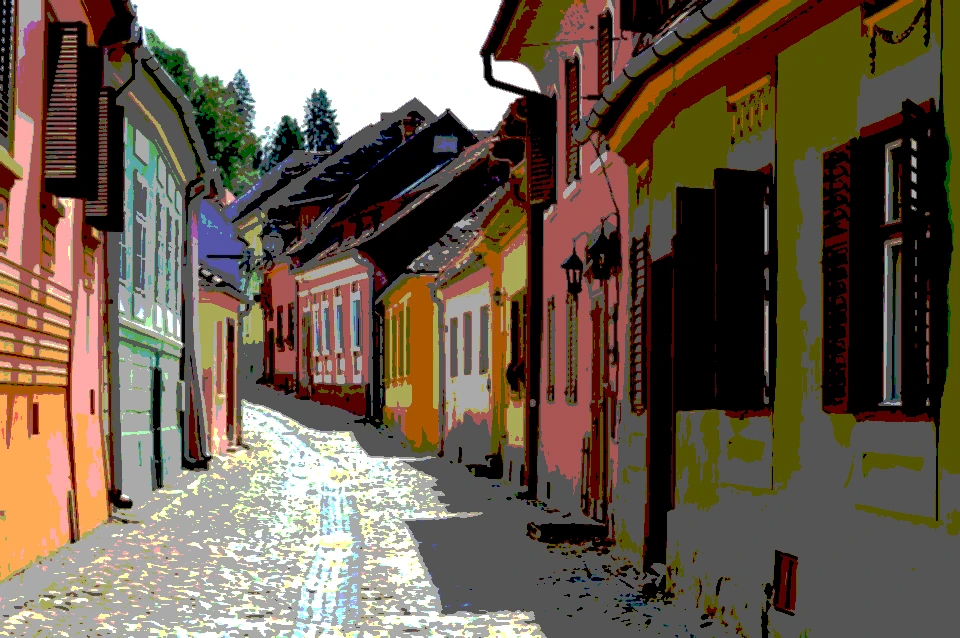
Live preview · updating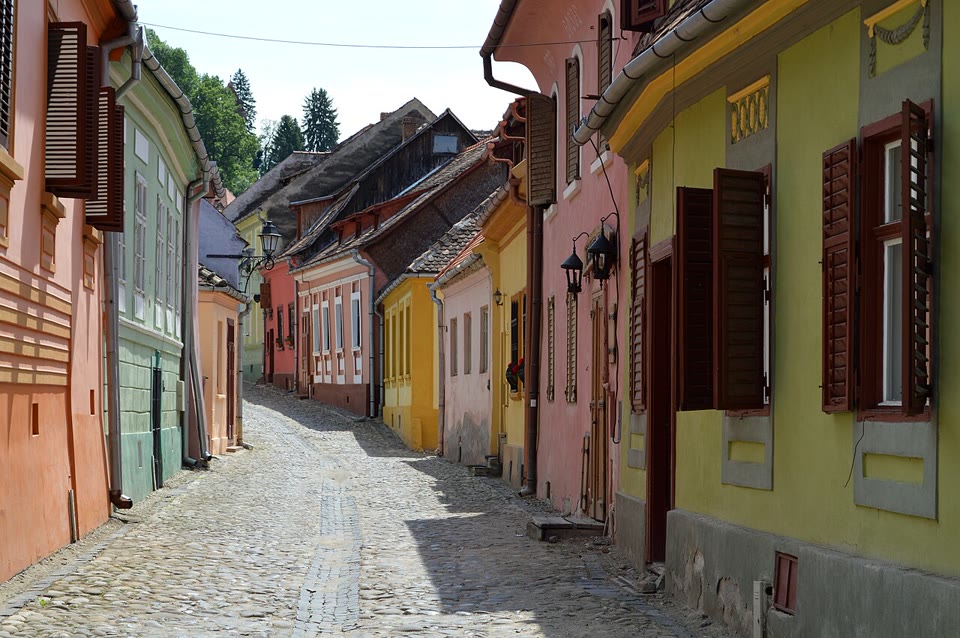
Adjust · preview updates automatically
Edits start from the original image. A fast preview updates as you adjust; full-size detail follows when you pause. Download uses your current settings.
Fewer levels, bolder shapes
Posterize a photo online: reduce each color channel to a few flat tones, smooth noisy detail first, or posterize in grayscale. Preview live and download PNG.
Start at 4 levels and lower it for a flatter poster look. Smoothing merges small speckles before the colors are reduced, which helps on noisy photos and skies. Grayscale posterize gives exactly the number of gray tones you choose.
How to use Posterize Image
- 01
Start with the example photo or open your own image.
- 02
Choose how many levels each color channel keeps. Fewer levels give a bolder poster look.
- 03
Add smoothing to reduce speckles, switch to grayscale if you like, then download PNG.
How many posterize levels should you use?
Levels apply to the red, green and blue channels separately. Two levels per channel leave at most 8 colors, 3 levels up to 27 and 4 levels up to 64, so low values look bold and graphic while 6–8 levels stay closer to the photo. In Grayscale, the number of levels is exactly the number of gray tones in the result.
Posterize a photo like in Photoshop
Photoshop's Image › Adjustments › Posterize also sets a number of levels per channel. To posterize a picture online instead, this free image posterizer uses a similar equal-step mapping, adds optional smoothing to merge small speckles first, and runs in your browser without an account.
Posterize, halftone or dither?
A posterization filter flattens tones into solid bands. Halftone Generator renders tone as dots or lines of varying size. Dither, in Image Effects, scatters a few colors in a fine pattern. For clean vector shapes instead of pixels, try Image to SVG.
When this tool works best
Posterize maps the red, green and blue channels to evenly spaced levels, like the Posterize adjustment in Photoshop. It does not pick an optimized palette or trace shapes; for vector paths, use Image to SVG. Noisy photos can leave speckled edges, so add smoothing.
Your downloaded file
A PNG at the displayed processing size, up to a 2000 px long edge, with input transparency preserved.
Your image stays on your device
Processing runs in this browser. No image upload, account or remote AI service is required. Original images are kept separate from edits; failed processing keeps the original available. Downloads use your current settings; previews update automatically where supported. Open-source notices