
Blur selected areas of an image
Select parts of a photo or screenshot to blur, adjust the strength and download your image.
Example image · ready to edit
PNG, JPEG or WebP. Up to 25 MB and 4000 × 4000 px. Large images are reduced to a 2000 px long edge. Your image stays in this browser.
Your preview
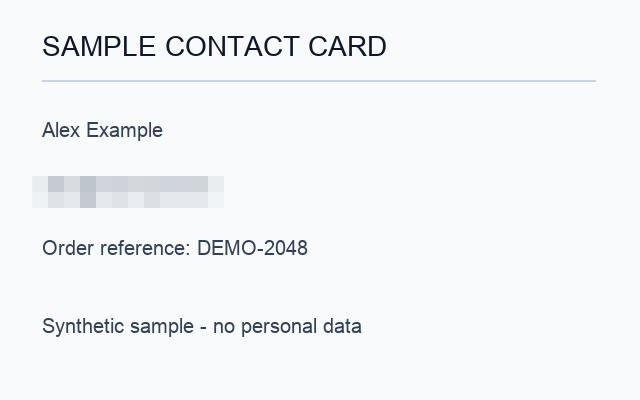
Live preview · updating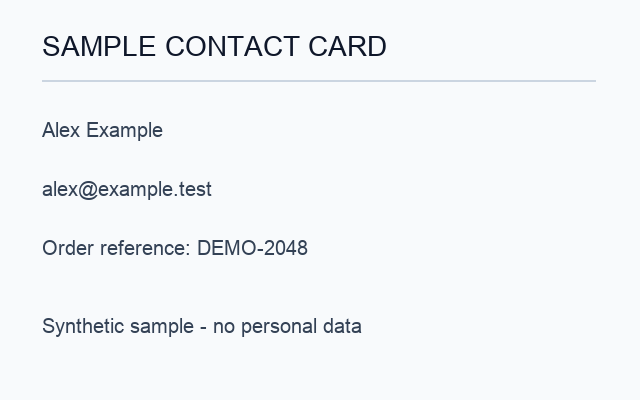
Draw rectangles over the areas you want to edit, then adjust the effect below. Unselected areas stay unchanged. Choose Whole image to apply the effect everywhere.
Adjust · preview updates automatically
Edits start from the original image. A fast preview updates as you adjust; full-size detail follows when you pause. Download uses your current settings.
Blur, mosaic or solid cover?
Apply a Gaussian blur online to selected areas of an image or the whole photo. Adjust the radius, compare and download PNG. Mosaic and solid cover too.
Blur softens edges. Mosaic replaces detail with blocks. To hide information, use an opaque solid cover and inspect the downloaded file; a blurred or pixelated area is not a promise of irreversible redaction.
How to use Blur Image
- 01
Upload a photo or try the loaded example.
- 02
Draw rectangles over the areas you want to blur. Adjust Blur radius and add more selections as needed.
- 03
Compare the preview and download PNG. Choose Whole image for an all-over effect, or switch to Mosaic or Solid cover using the same selection.
Gaussian blur online, on part or all of a photo
Blur mode applies a Gaussian blur: each pixel becomes a weighted average of its neighbors, so edges soften smoothly instead of breaking into blocks. Blur radius sets how far that averaging reaches. A small radius gently softens a background; a larger one smooths away fine detail such as small text. Choose Whole image for an all-over Gaussian blur, or draw rectangles or brush strokes to blur only a name, a license plate or a busy background.
When this tool works best
Selections are manual; there is no automatic text or face detection. Blur softens details, mosaic creates blocks, and solid cover replaces selected pixels with a color. For information that must be hidden, use an opaque solid cover and inspect the result.
Your downloaded file
A PNG at the displayed processing size, with a maximum 2000 px long edge. Pixels outside a selected area stay unchanged.
Your image stays on your device
Processing runs in this browser. No image upload, account or remote AI service is required. Original images are kept separate from edits; failed processing keeps the original available. Downloads use your current settings; previews update automatically where supported. Open-source notices