
AI image upscaler: enlarge a photo 2× or 4×
Make a small or soft picture larger and sharper with AI, then download PNG or JPEG.
Your image
PNG, JPEG or WebP up to 25 MB and 4000 × 4000 px. Your image stays in this browser.
AI model
From a small photo to a sharp 4× enlargement
Free AI image upscaler: upscale an image 2x or 4x with Real-ESRGAN running in your browser. Sharper than ordinary resizing, no watermark, and your photo is never uploaded.
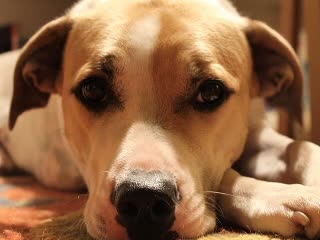
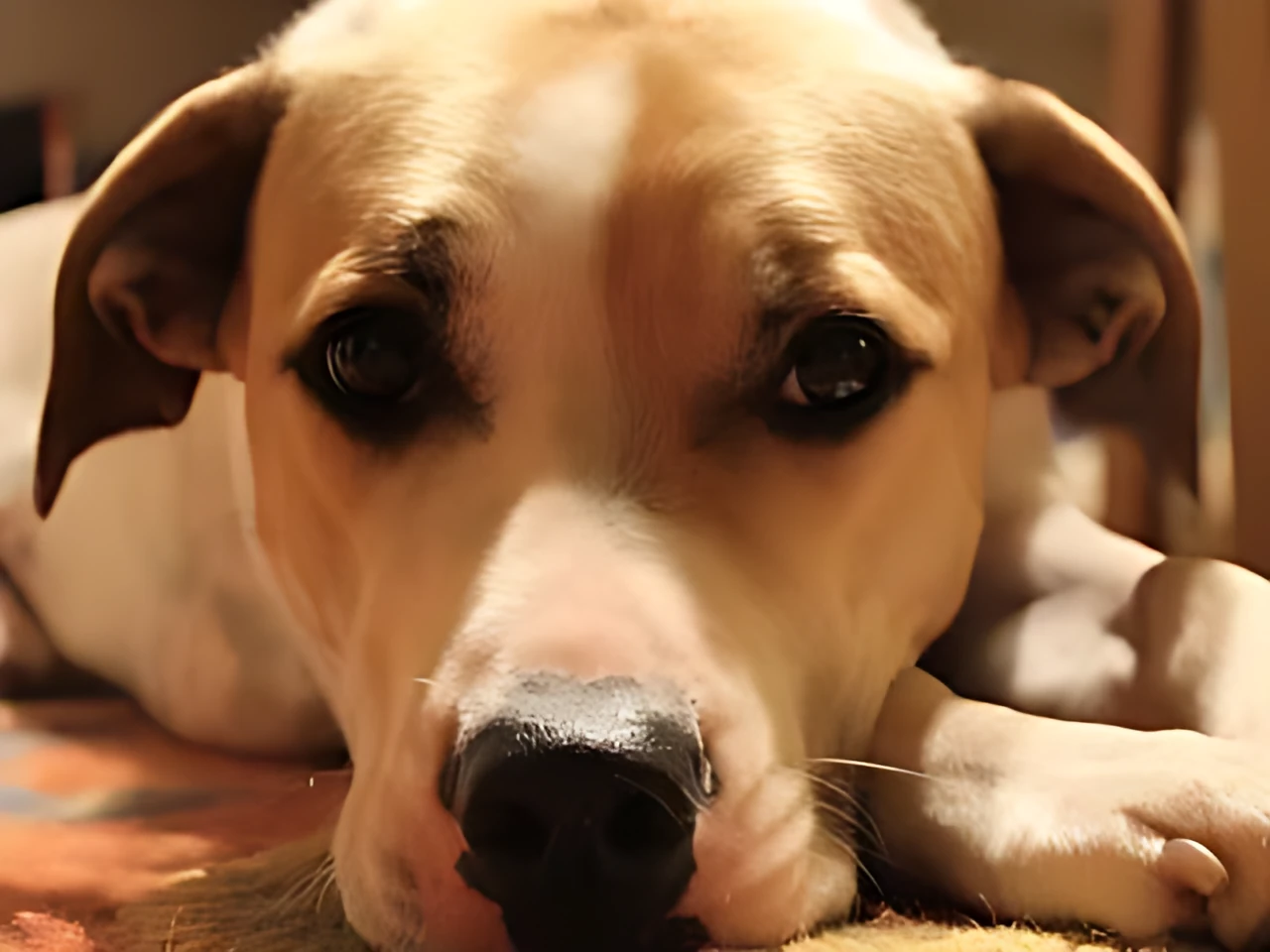
Ordinary resizing spreads the existing pixels over a bigger area, so a 4× enlargement looks soft and blocky. The AI model was trained on pairs of sharp and degraded photos, so it draws edges and texture back in. Compare both with the divider in the tool before you download.
How to use AI Image Upscaler
- 01
Upload a photo, or start with the small example.
- 02
Choose 2× or 4× and a model: Fast for most pictures, High detail for more texture. The first run downloads the model once; after that it is saved in your browser.
- 03
Press Upscale, drag across the result to compare it with ordinary resizing, then download PNG or JPEG.
Upscale an image with AI, in your browser
Most online upscalers send your photo to a server. This one downloads the AI model to your browser instead and runs it on your device with WebGPU, the browser's access to your graphics card. Nothing is uploaded, so there are no credits, queues or file limits beyond what your device can hold. The model is saved in your browser after the first run, so the next image starts straight away.
The picture is processed in small tiles, so even large images fit in memory. Each tile is run with a margin of its neighbours that is cropped away afterwards, so no seams show. Results go up to 16 megapixels, for example 4096 × 4096 or 4800 × 3200 pixels.
Real-ESRGAN, the model behind Upscayl
The models are the official Real-ESRGAN releases by Xintao Wang and colleagues, the same family that desktop apps such as Upscayl are built on. Real-ESRGAN was trained on photos deliberately degraded with blur, noise, resizing and JPEG compression, so it learned to undo those problems while enlarging. Here it runs as an ONNX model in your browser, converted from the published weights and stored at half precision to halve the download. See the open-source notices.
Enlarge a small image for print or a bigger screen
A 600 × 400 photo prints at only 2 × 1.3 inches at 300 pixels per inch; upscaled 4× it becomes 2400 × 1600, enough for an 8 × 5.3 inch print. The same applies to a thumbnail you want as a wallpaper or an old web image you need for a slide. AI upscaling gives cleaner edges than enlarging in a photo viewer, but it cannot add real detail, so look at the result at 100% before printing.
AI upscaling or sharpening?
Use this upscaler when the picture is too small. If the size is right but the picture looks soft, Sharpen Image boosts the edges you already have without changing the size. To change the shape of a picture rather than its size, try the content-aware resizer.
AI image upscaler FAQ
- Is this AI image upscaler free?
- Yes. There is no account, no daily limit and no watermark. The AI model runs in your browser, so there is no server time to pay for.
- Is my image uploaded?
- No. The model is downloaded to your browser and runs on your device. Your picture, the result and the file name never leave it.
- How do I upscale an image without losing quality?
- Enlarging always has to fill in pixels that were not there. Ordinary resizing blends neighbouring pixels, which looks soft. An AI upscaler such as Real-ESRGAN draws plausible edges and texture instead, so the result looks sharper. Start from the best copy of the image you have, and save the result as PNG to avoid adding compression.
- Should I use 2× or 4×?
- Use the smallest enlargement that reaches the size you need. 2× is quicker and stays closer to the original; 4× suits small images such as thumbnails, old web pictures and screenshots. Both use the same 4× model; 2× averages its output down, which is sharper than enlarging 2× with ordinary resizing.
- What is the difference between Fast and High detail?
- Fast uses realesr-general-x4v3, a 2.4 MB model that handles most photos well and runs quickly. High detail uses RealESRGAN_x4plus, a 34 MB model that rebuilds more texture but takes about three times as long. Try Fast first, and switch when you want more texture.
- How long does upscaling take?
- On a computer with WebGPU, Fast enlarges a 0.65-megapixel photo 4× in about 5 seconds and High detail in about 15 seconds; we measured this on a recent Mac. Older graphics chips are slower. Without WebGPU the model runs on the processor and can take minutes. The first run also downloads the model and the AI engine once.
- Can it fix a blurry photo or unreadable text?
- It removes mild blur, noise and JPEG blocks, but it cannot recover detail that is not in the picture. Heavily blurred text stays unreadable or turns into made-up letters, and faces can change. Check the result before you use it for anything that matters.
When this tool works best
Real-ESRGAN was trained to remove blur, noise and JPEG artifacts and to rebuild plausible texture. It invents detail rather than recovering it, so small text, faces and logos can come out wrong, and smooth areas can look painted. It runs on your device: with WebGPU most images take seconds, without it the model runs on the processor and can take minutes, and phones may run out of memory on large results.
Your downloaded file
A PNG or JPEG exactly 2 or 4 times the width and height of the image, up to 16 megapixels and 8192 px per side; a larger image is reduced first so the result fits. PNG keeps transparency, scaled smoothly. No watermark.
Your image stays on your device
Processing runs in this browser. No image upload, account or remote AI service is required. Original images are kept separate from edits; failed processing keeps the original available. Downloads use your current settings; previews update automatically where supported. Open-source notices