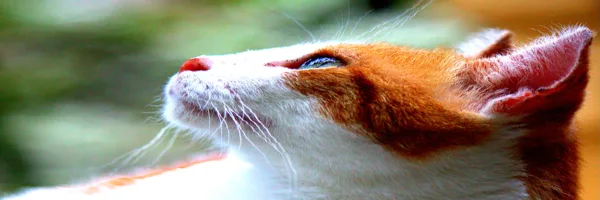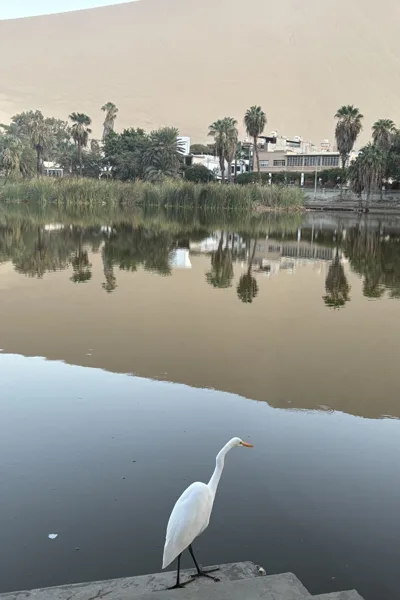

Resize for a platform
Reshape with content-aware resize, keep the whole picture with a background, or crop to fill.
Photo exports have no watermark.
- YouTube 16:9
- Instagram 1:1
- Story 9:16
- X header 3:1
- + 4 more
 Content Aware Scale
Runs in your browser
Resize a photo with content-aware scaling or make a meme, right in your browser.
Reshape with content-aware resize, keep the whole picture with a background, or crop to fill.
Photo exports have no watermark.
Squish or melt any photo into the content aware scale meme, then share it as a video or GIF.
Free · up to 480p · no watermark.
Or drop a photo anywhere on this page.
Content-aware scale, also called content-aware scaling or seam carving, changes an image's aspect ratio by removing or adding thin paths of low-detail pixels instead of stretching every pixel equally. Quiet areas such as sky, walls or out-of-focus backgrounds absorb most of the change, so the main subject is more likely to keep its shape. Photoshop calls the feature Content-Aware Scale; this free tool does the same kind of resize in your browser.
Resize a photo for your chosen platform, or squish it into a content aware scale meme and save it as an MP4 or GIF, played forward, in reverse or as a boomerang. Everything happens on your device. Photo resizing is free, with no signup or image upload.
Drop a PNG, JPEG, or WebP file (up to 25 MB / 4000×4000 px). Nothing is uploaded to a server; the file stays in your browser's memory.
Choose a platform preset or custom size, then Content-aware, Fit whole image or Crop to fill. Keep the whole picture with a background, choose a crop, or reshape lower-detail areas.
Compare the before/after and read any quality note, then download in PNG, JPEG, or WebP. Processing time depends on the image and your device.
Quiet backgrounds and modest ratio changes are the best starting point. Text, repeating patterns and subjects near an edge need a careful preview. Content-aware mode may crop before carving for large changes. Choose Fit whole image to keep every part of the picture, or Crop to fill to control the crop yourself.
Compare photo examples and see the limitations →A face with space around it, a product against a plain wall or a landscape with open sky is a useful starting point. Compare the outline of the subject after resizing. For a thumbnail or banner, add your text afterward so letters are not reshaped with the background.
To keep the whole picture, choose Fit whole image above and add a solid, transparent or blurred background. For multiple pictures, arrange them on one canvas. If you want the subject to collapse or melt deliberately, use the meme maker instead.
Seam carving is the image resizing algorithm behind content-aware scaling, introduced by Avidan and Shamir at SIGGRAPH 2007. Instead of uniformly stretching or cropping pixels to fit a new aspect ratio, it computes a per-pixel energy map using a Sobel gradient and removes (or duplicates) one-pixel-wide paths through the lowest-energy regions — sky, walls, out-of-focus backgrounds. The goal is to let quieter parts of the background absorb more of the change. Edges, faces and text can still distort.
Photoshop shipped this as Content-Aware Scale in CS4. Our tool runs the same class of algorithm — a Rust port of caire, compiled to WebAssembly — entirely in your browser. Face detection is enabled by default, giving detected faces higher priority while choosing seams. This does not guarantee that faces remain unchanged. Your selected image is processed locally. The site still makes network requests for application files, fonts and analytics; those are separate from the image processing.
Start with a photo that has space around the subject and make a modest ratio change. Large changes may trigger automatic cropping. Compare faces, lettering and straight lines before downloading; protection settings do not guarantee unchanged details.
If you searched for Photoshop Content-Aware Scale but only need a quick resize, this browser tool covers the common case: reshape a photo to a new aspect ratio using seam carving and, for larger ratio changes, an automatic crop before carving. It is free to use, works online, and keeps the image on your device.
Use it for fast aspect-ratio changes, social media crops, headers, thumbnails, and product images where the background can absorb the resize. For detailed retouching, layered edits, or PSD project editing, a full image editor may be a better fit. See the task-by-task Photoshop alternative comparison.